


In this article
Your workspace setup directly affects your comfort, your focus, and how your body feels at the end of the day. A poor ergonomic office setup quietly builds neck tension, back discomfort, and fatigue that follow you home. A good one takes most of that load off before it ever accumulates.
This guide walks through the practical parts of a proper ergonomic desk setup: how to adjust your chair, where to place your monitor, how to position your keyboard and mouse, and how to handle lighting and a standing desk. Then it covers the part most ergonomic guides leave out, which is why a perfect setup alone does not always fix how your posture feels.
The short version
Feet flat and knees at about 90 degrees, lower back in the lumbar support, elbows at about 90 degrees with the keyboard close, and the top of the monitor at or just below eye level, about an arm's length away. Change position every 30 to 60 minutes. If tension keeps returning with all of that in place, the setup is not the missing piece: the posture your brain defaults to is.
Why Office Ergonomics Matters
Office ergonomics is the practice of arranging your workspace to fit your body instead of forcing your body to fit the workspace. When the desk, chair, and screen support your natural alignment, you work more comfortably and the small strains that add up over a full day mostly disappear.
When the setup works against you, the pattern is predictable. Monitors set too high or too low pull the neck and shoulders into tension. A chair with poor support lets the lower back collapse. A keyboard placed too far forward loads the wrists and forearms. Screens with glare tire the eyes and bring on headaches. And long stretches without movement slow circulation and leave the whole body stiff.
Fixing those is not complicated, and the payoff is real: less muscle and joint strain, steadier focus, less fatigue, and a lower chance of the repetitive-strain problems that build up over months at a desk.
Go deeper: how forward head position at a desk affects your brain and posture (free e-book inside with the Posturepro+ subscription).
Chair Setup: Your Foundation for Comfort
Your chair is the base of the whole setup. Getting it right supports the natural curves of your back and keeps the rest of the workstation in reach without strain.

Seat height
Set the seat so your feet rest flat on the floor and your thighs sit roughly parallel to the ground, with your knees at about 90 degrees. If your feet do not reach comfortably, add a footrest. Correct height takes the pressure off the back of your thighs and keeps circulation moving.
Backrest and lumbar support
Angle the backrest to about 100 to 110 degrees from vertical and position the lumbar support into the curve of your lower back. This keeps the spine supported and makes slouching harder to fall into.
Armrests
Set the armrests so your elbows rest at about 90 degrees with your shoulders relaxed, not lifted. Armrests that are too high creep the shoulders up and tighten the neck.
If you are choosing a new chair, look for adjustable seat height, real lumbar support, adjustable armrests, a seat depth that leaves two to three inches behind your knees, breathable fabric, and a stable five-point base. You do not need the most expensive model. A rolled towel or a cushion can add lumbar support to almost any chair.
Desk and Monitor Positioning: Protecting Your Neck and Eyes
Monitor position is the single change that affects your neck the most, because it sets your head position for the entire day. Most desk discomfort traces back to looking up or down at a screen for hours.
Screen height and distance
The top of your monitor should sit at or slightly below eye level, so your line of sight lands on the screen at a gentle 10 to 20 degree downward angle. Sitting naturally, your eyes should meet the top third of the screen without tilting your head. Distance should be about 20 to 26 inches, roughly arm's length, and text should be readable without leaning in.
Dual monitors and laptops
With two monitors, place your primary screen directly in front of you and angle the second toward you at the same height. If you use both equally, center yourself between them. Laptops are the hardest case, because the screen and keyboard are joined. Raise the laptop on a stand to bring the screen to eye level, then add an external keyboard and mouse so your hands stay at the right height.
Keyboard and Mouse Ergonomics
Good hand positioning prevents the wrist and forearm strain that builds slowly and then lingers.
Keep your elbows at about 90 degrees with relaxed shoulders, and your wrists straight and neutral rather than bent up, down, or sideways. Keep the keyboard close so you are not reaching, and center the B key with the midline of your body. Position the mouse at the same height as the keyboard and close to your side, hold it with a loose grip, and move from the whole arm rather than flicking from the wrist.
If discomfort persists, alternative devices can help: a split or curved keyboard that matches your hand angle, a vertical mouse that reduces forearm rotation, or a trackball that removes wrist movement altogether.
Lighting and Environmental Factors
Lighting is easy to overlook and quick to fix. Place your monitor perpendicular to windows rather than facing or backing them, use indirect overhead light instead of bright lights directly above the screen, and match your screen brightness to the room around it. A desk lamp helps for reading physical documents, positioned so it lights the page without throwing glare onto the screen.
The room matters too. Aim for a comfortable temperature, moderate humidity, steady airflow without a direct draft, and enough sound control that you are not fighting distraction all day. None of this is expensive, and together it removes a surprising amount of low-grade fatigue.
Standing Desk Considerations
A standing desk earns its place when you actually alternate between sitting and standing, not when you simply trade sitting all day for standing all day. When you stand, keep the same rules: elbows at about 90 degrees, the top of the screen at or just below eye level, weight balanced evenly on both feet, knees soft rather than locked, and feet about hip-width apart.
Build the habit gradually. Start with 15 to 30 minutes of standing per hour, then work toward a more even split as it feels comfortable. Change position every 30 to 60 minutes. An anti-fatigue mat, a footrest bar to shift your weight, and a monitor arm that moves easily between sitting and standing all make the transition smoother.
The Five Mistakes Most Ergonomic Setups Miss
Most people buy the chair and the standing desk, then wonder why the tension comes back. The setup is part of the answer, not the whole answer.
- Treating the gear as the whole solution. A good chair lowers the strain. It does not retrain the brain. Posture defaults to whatever the brain treats as normal, which is usually the old pattern the moment your attention moves elsewhere.
- Standing all day instead of sitting all day. A standing desk shifts the load. It does not change the underlying resting pattern. Without movement variety, standing produces the same stiffness sitting did.
- Buying the gear before addressing the feedback the brain reads. If the feedback coming from the feet is distorted, no chair holds the body upright on its own. The brain simply compensates around the gear.
- Skipping the breath. Desk stress drives shallow breathing, shallow breathing tightens the chest, and a tight chest pulls the head forward. An ergonomic setup does not change that on its own.
- Ignoring the eyes. Screen distance and brightness change how the eyes work, and eye position drives head position. Most ergonomic guides leave this out completely.
This is why two people with the same desk can feel completely different at 5 p.m. The setup controls the load. The pattern your brain defaults to controls how your body actually holds itself once you stop thinking about it.
Reset the pattern, not just the desk
That pattern is what the 5 Minute Posture Fix works on: a short, guided daily routine for people who spend their days at a desk, so the posture you sit in changes, not just the furniture around it.
Daily Ergonomic Checklist for Correct Sitting Posture at a Desk
Run this quick check once a day until correct sitting posture at your desk becomes second nature:
- Feet flat on the floor or a footrest
- Knees at about 90 degrees
- Lower back supported by the chair
- Shoulders relaxed, not raised
- Elbows at about 90 degrees
- Wrists straight while typing
- Top of the monitor at eye level
- Screen about 20 to 26 inches away
- No glare on the screen
- Frequently used items within easy reach
These ergonomic adjustments set your body posture at the desk, so revisit them whenever something feels off. One common slip is leaning too far back in the chair, which lifts you out of the lumbar support and lets the lower back round again.
If you feel comfortable through the day without pain, tension, or fatigue, and you are not straining to reach your keyboard, mouse, or screen, the setup is doing its job. If discomfort keeps returning even with everything adjusted correctly, the setup is not the missing piece. The resting pattern behind it is.
Why a Perfect Setup Sometimes Is Not Enough
An ergonomic office setup lowers the physical load on your body, and for many people that is enough to feel better at the desk. But the setup does not change the posture your brain treats as its default. If your head drifts forward and your shoulders round the second your focus locks onto the screen, the chair and monitor can only do so much.
Posture is organized by the brain from the feedback it receives, and at a desk that feedback gets narrow: eyes fixed at one distance, breathing shallow, feet still for hours. The body settles into whatever pattern the brain has learned to hold, and a better chair does not rewrite that pattern. That is the gap between a setup that reduces strain and a change that holds on its own.
Conclusion
Build the setup first. Adjust the chair, place the monitor, sort the keyboard and lighting, and add movement through the day. It is the foundation, and it is worth doing well. Then, if the tension keeps coming back, address the resting pattern your brain defaults to, because that is the part no piece of furniture can fix for you.
5 Minute Posture Fix
Improve Your Desk Posture in Just 5 Minutes a Day
Working at a Desk All Day? Stop Letting Your Posture Pay the Price.
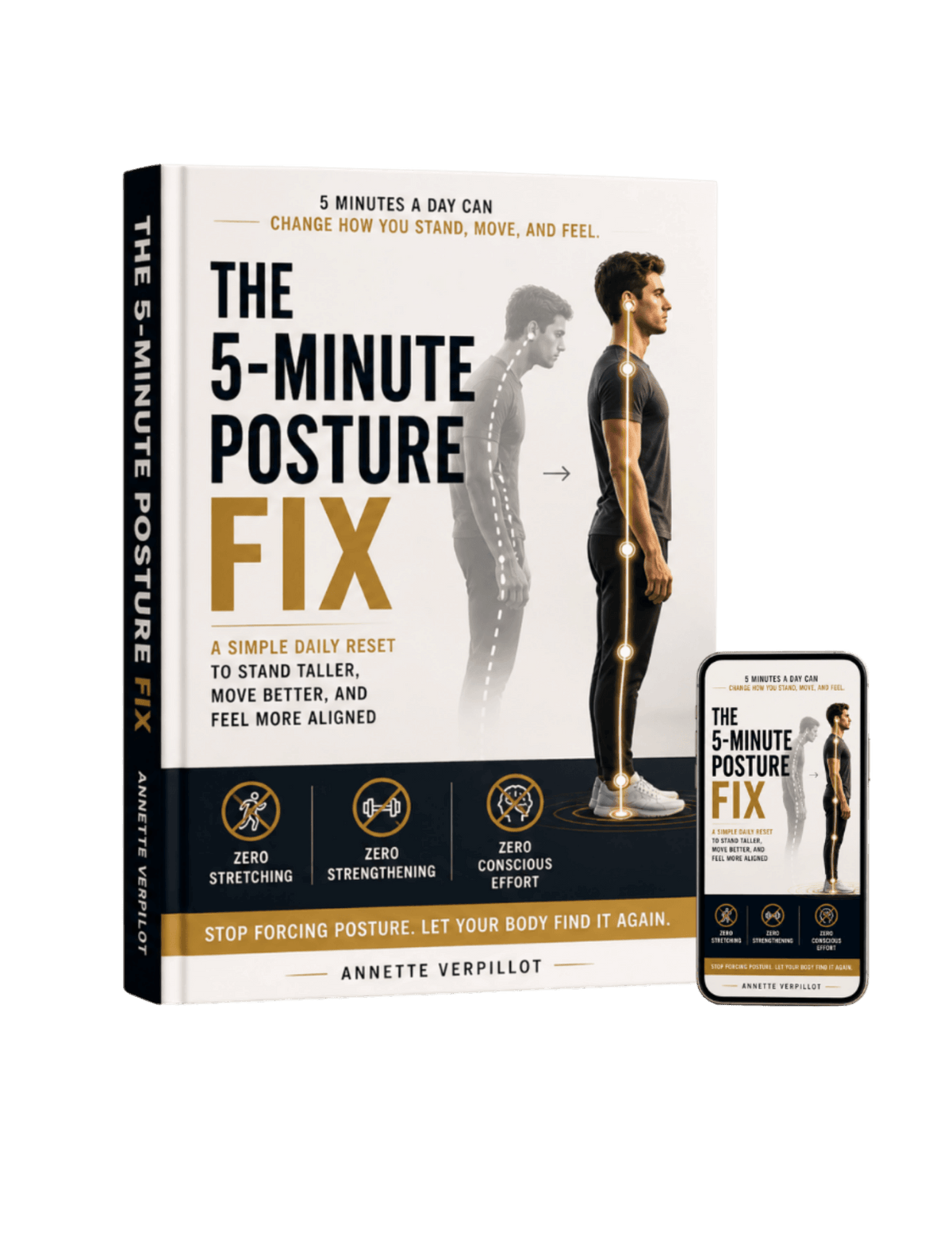
- ✓ Help reduce rounded shoulders and forward head posture caused by long hours sitting at a computer.
- ✓ Follow a simple, guided 5 minute routine designed for people who work from home or spend their days at a desk.
- ✓ Improve your posture without spending hours exercising, buying equipment, or constantly reminding yourself to sit up straight.
Frequently Asked Questions
What is the proper height for an office chair?
Adjust your chair height so your feet rest flat on the floor and your thighs are parallel to the ground. Your knees should be at approximately 90-degree angles. If your feet do not reach the floor, use a footrest.
What does a proper ergonomic desk setup look like?
A proper ergonomic desk setup puts your feet flat with your knees at about 90 degrees, your lower back in the chair's lumbar support, your elbows at about 90 degrees with the keyboard close and at elbow height, and the top of your monitor at or slightly below eye level, 20 to 26 inches away. The screen sits perpendicular to windows to avoid glare, and the things you use most stay within easy reach.
How do I set up an ergonomic chair?
Start with seat height, so your feet rest flat and your thighs sit roughly parallel to the floor. Angle the backrest to about 100 to 110 degrees and set the lumbar support into the curve of your lower back. Then lower the armrests until your elbows rest at about 90 degrees with your shoulders relaxed, and check that the seat leaves two to three inches behind your knees.
How far should my computer monitor be from my eyes?
Your monitor should be 20 to 26 inches (about arm's length) from your eyes. The top of the screen should sit at or slightly below eye level, with your line of sight hitting the screen at a 10 to 20 degree downward angle.
Can poor office ergonomics cause back pain?
Yes. Poor office ergonomics is a common contributor to back pain, neck strain, and other musculoskeletal discomfort. A well-adjusted setup reduces the static load that builds up over a full workday.
How often should I take breaks from sitting at my desk?
Take a short break every 30 to 60 minutes to stand, move, or walk. Even two to three minutes of movement helps prevent stiffness and supports circulation. The 20-20-20 rule also helps: every 20 minutes, look at something 20 feet away for 20 seconds.
What is the best keyboard position for preventing wrist strain?
Keep your elbows at about 90-degree angles with your shoulders relaxed. Your wrists should stay straight and neutral, not bent up, down, or sideways. The keyboard should sit at elbow height or slightly below.
Do I need an expensive ergonomic chair?
No. A good chair helps, but you do not need to spend a fortune. Look for adjustable seat height, lumbar support, and adjustable armrests. You can also improve almost any chair with a lumbar cushion or a rolled towel behind your lower back.
How can I make my laptop more ergonomic?
Raise the laptop screen to eye level with a stand, then add an external keyboard and mouse. This prevents the neck strain that comes from looking down at a laptop screen. A document holder at screen height helps too.
Is a standing desk better than sitting?
Standing desks help when used properly, but the real benefit is alternating between sitting and standing. Start with 15 to 30 minutes of standing per hour and build up. Standing still for hours causes its own strain, so movement variety matters most.
What is the most important ergonomic improvement I can make?
Monitor position is often the highest-impact change, because it drives head and neck position for the whole day. Pairing correct monitor height with a well-adjusted chair gives most people the biggest comfort gain.
Why does my posture still feel bad after a perfect ergonomic setup?
An ergonomic setup lowers the load on your body, but it does not change the posture your brain treats as normal. If your head drifts forward or your shoulders round the moment your attention shifts, the setup is not the whole answer. The resting pattern your brain defaults to has to change too.
What is proper sitting posture at a desk?
Proper sitting posture at a desk means feet flat on the floor, knees at about 90 degrees, your lower back supported by the chair, shoulders relaxed rather than raised, and the top of your monitor at eye level. Good sitting posture keeps your head balanced over your shoulders instead of drifting toward the screen, so no single area carries all the strain.
How do I improve my posture at my desk?
To improve your posture at your desk, first adjust the chair and monitor so the setup supports you: feet flat, elbows at about 90 degrees, screen at eye level. Then add movement, because one of the best ways to improve your posture while sitting at a desk is to change position every 30 to 60 minutes rather than hold one pose all day.
How do I fix my sitting posture?
To fix your sitting posture, correct the setup first and then the habit. Set your chair, screen, and keyboard to neutral positions, then take short breaks to reset. If your sitting posture keeps collapsing the moment you stop thinking about it, the resting pattern your brain defaults to is the part that needs to change, not just the chair.
How do I stop slouching at my desk?
To stop slouching at a desk, set your lumbar support into the curve of your lower back, raise your monitor so you are not looking down, and keep your feet flat so your pelvis stays upright. Slouching usually returns when the chair lets the lower back collapse or when the screen sits too low, so fixing those two removes most of it.
What is the best posture for a standing desk?
The best posture for a standing desk keeps your elbows at about 90 degrees, the top of the screen at or just below eye level, your weight balanced evenly on both feet, and your knees soft rather than locked. The correct posture for desk work, whether sitting or standing, comes from alternating between the two rather than holding either one for hours.
How do you fix your sitting posture at a desk?
Work through the setup in order: chair height so your feet sit flat, lumbar support into the curve of your lower back, monitor raised to eye level, keyboard at elbow height. Then reset your position every 30 to 60 minutes. If the slouch keeps returning even with the setup right, the resting pattern your brain defaults to is the remaining piece.
